Here are 3 practical ways to use a Visa gift card:

- 1. Online shopping:
- Select Your Items: Browse the online store and add the items you want to purchase to your shopping cart.
- Proceed to Checkout: When you’re ready to pay, go to the checkout page of the online store.
- Enter Card Information: In the payment section, select “Credit Card” as your payment method. Enter the Visa gift card number, expiration date, and CVV code. If the store requires a billing address, you may need to enter the address associated with the card, which is often your own.
- Apply the Card: If the store allows, apply the Visa gift card as a payment method. Some websites have an option to enter multiple payment methods, so you can use the card for part of the purchase and pay the rest with another method if necessary.
- Verify the Amount: Make sure the total amount of your purchase does not exceed the balance on your Visa gift card. If it does, you may need to use another payment method to cover the difference.
- Complete the Transaction: Review your order details and complete the purchase. You should receive an order confirmation via email or on-screen.
- Track Your Purchase: Keep track of your order through the online store’s order tracking system, if available. This will help you monitor shipping and delivery.
- Check for Issues: If your transaction is declined or if you encounter any issues, contact the customer service department of the online store or the card issuer for assistance.
- By following these steps, you can efficiently use your Visa gift card for online shopping while ensuring a smooth transaction process.
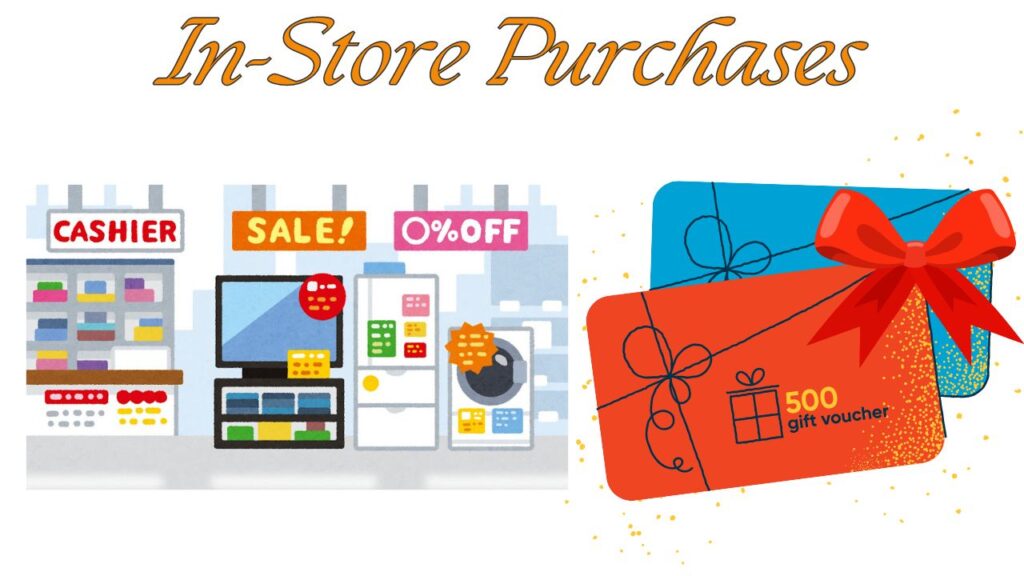
- 2.In-store purchases: Swipe or insert the card at the register of most retail stores. Some locations may require a PIN, which can usually be set up or obtained online.
Certainly! Here’s a detailed guide on how to use a Visa gift card for in-store purchases:
Using a Visa Gift Card for In-Store Purchases
- Shop as Usual: Select the items you want to purchase and proceed to the checkout counter.
- Inform the Cashier: When it’s time to pay, inform the cashier that you’d like to use a Visa gift card. This will help them process the payment correctly.
- Swipe or Insert the Card: Use the card reader to swipe or insert your Visa gift card. Some modern systems may require you to enter the card’s PIN, which can be set up online or through the card issuer if necessary.
- Enter the PIN (if required): If the card requires a PIN for the transaction, enter it when prompted. If you don’t have a PIN or the card doesn’t support one, the cashier may need to process the payment as a credit transaction.
- Split Payments (if needed): If your purchase amount exceeds the balance on the gift card, you can often split the payment. First, use the gift card for part of the amount, and then pay the remaining balance with another payment method, such as a credit card or cash.
- Review the Transaction: Check the amount being charged to ensure it matches your intended purchase. Confirm the transaction details with the cashier.
- Receive Your Receipt: After the transaction is complete, take your receipt. It will show the remaining balance on your gift card, which is useful for future purchases.
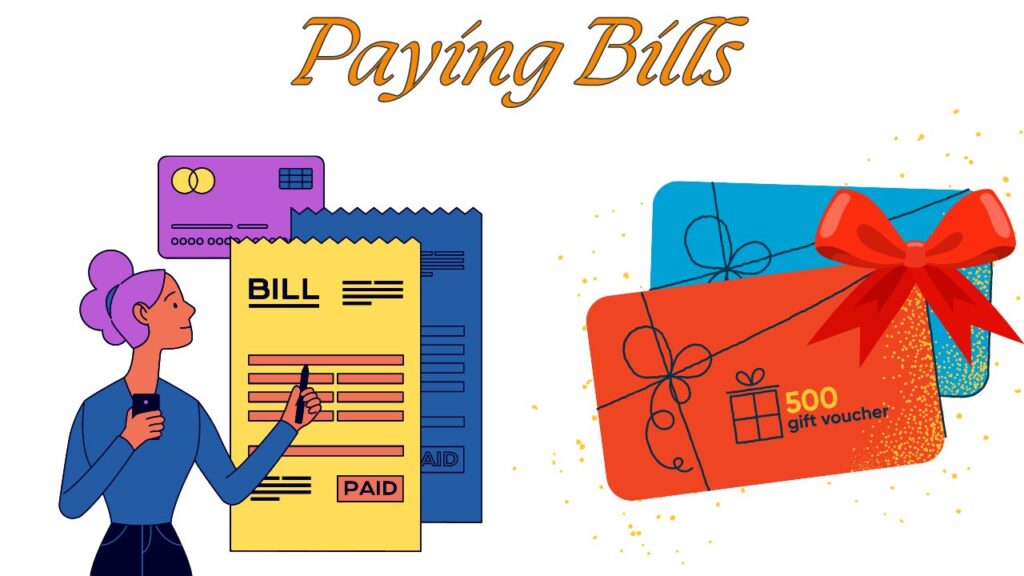
- 3.Paying bills: Many service providers and utilities accept Visa gift cards for bill payments. Check with the provider to make sure they accept prepaid cards.
Using a Visa gift card to pay bills can be a convenient option, but it may require a few additional steps compared to standard payment methods. Here’s a detailed guide:
Paying Bills with a Visa Gift Card
- Check the Card Balance: Ensure your Visa gift card has sufficient funds to cover the bill amount. You can check the balance online or by calling the card issuer.
- Determine Payment Method Compatibility: Verify that the biller accepts Visa gift cards. Most companies that accept credit card payments will also accept Visa gift cards.
- Gather Card Details: Have your Visa gift card ready, noting the card number, expiration date, and CVV code. You’ll need these details for the payment process.
- Visit the Biller’s Payment Portal: Go to the payment section of the biller’s website. This could be for utilities, credit card companies, or other service providers.
- Enter Payment Information: Input the Visa gift card information into the payment fields, just as you would with a regular credit card. This includes the card number, expiration date, and CVV code.
- Address Information: If prompted for a billing address, you may need to enter your own address or the address linked to the card, especially if it’s required by the payment system.
- Split Payments (if necessary): If the bill amount exceeds the balance on your Visa gift card, you can often split the payment. Use the gift card for part of the payment and cover the remaining amount with another payment method, such as a credit card or bank account.
- Review the Payment Details: Double-check the payment amount and card details before submitting. Ensure everything is accurate to avoid processing errors.
- Submit the Payment: Complete the payment process by submitting the payment form. You should receive a confirmation of payment on-screen or via email.
- Track Your Payment: Monitor your Visa gift card balance and check your biller’s account to confirm that the payment was processed successfully. Keep a record of the transaction for your financial tracking.
Remember to keep track of the balance on your Visa gift card to avoid any declined transactions and make sure you use it before it expires, if applicable.